The "Camera" and "Powerpoint" devices are switched
Right-click on the "Camera" source in Streamlabs OBS and click on "Properties".
Click on the "Device" dropdown and select different devices until it shows the camera source in the correct place.
Repeat those steps for the "Powerpoint" source.
Make sure the "Board Sound" audio fader is moving (when there is music or something playing through the sound system). If it isn't, right-click the "Board Sound" source and click "Properties".
Click on the "Device" dropdown and select different devices until you see movement on the audio fader.
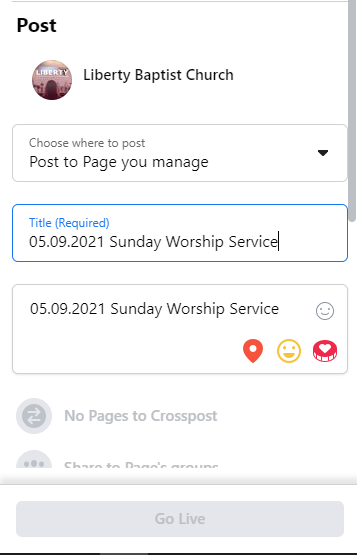
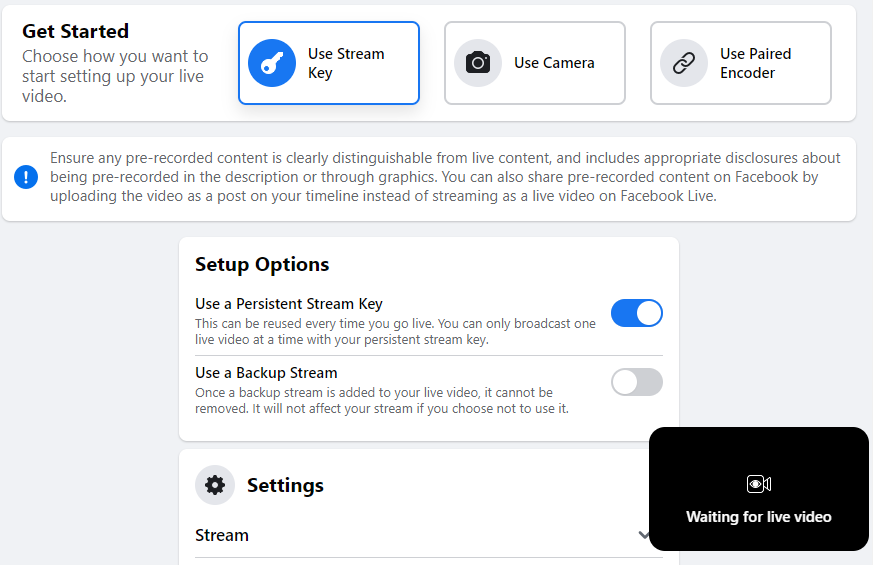
Facebook is not connecting after "Going Live" in Streamlabs OBS
Make sure the "Use Persistent Stream Key" option is enabled in Facebook Live and wait a few seconds.
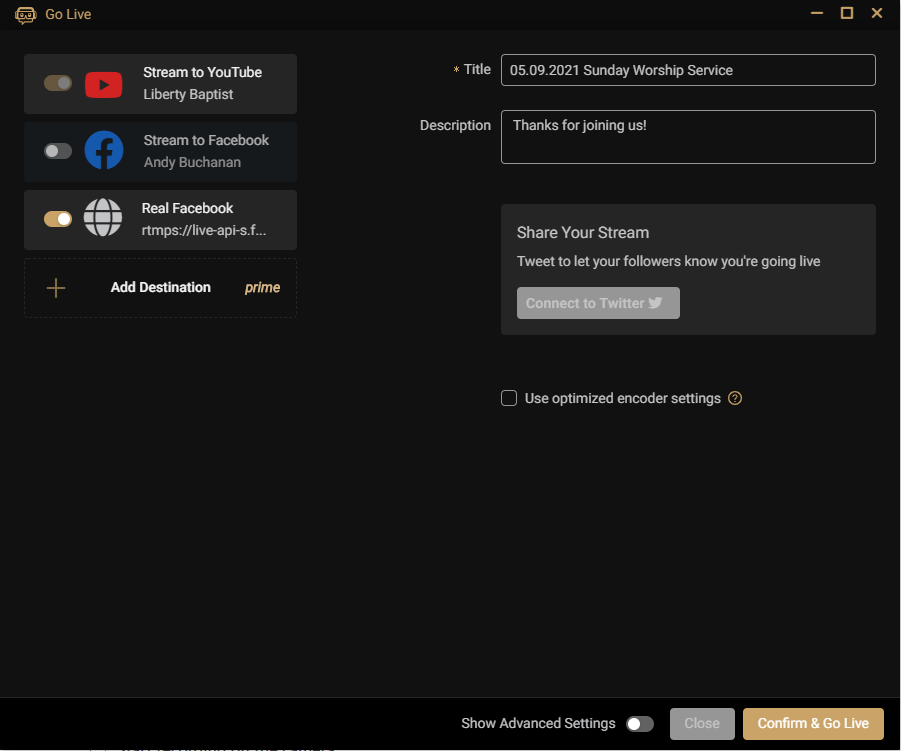
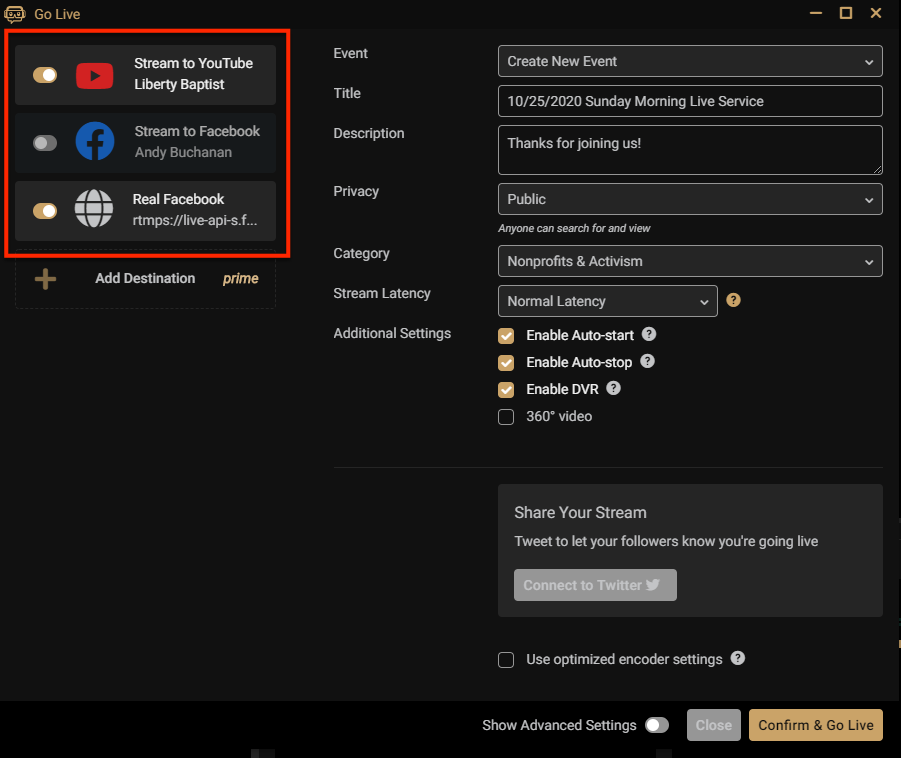
Streamlabs OBS is requesting that you select a game for the stream to "Go Live"
Make sure the "Facebook" platform is disabled and the "Real Facebook" platform is enabled.